
Get website feedback and bug reports into your Notion project
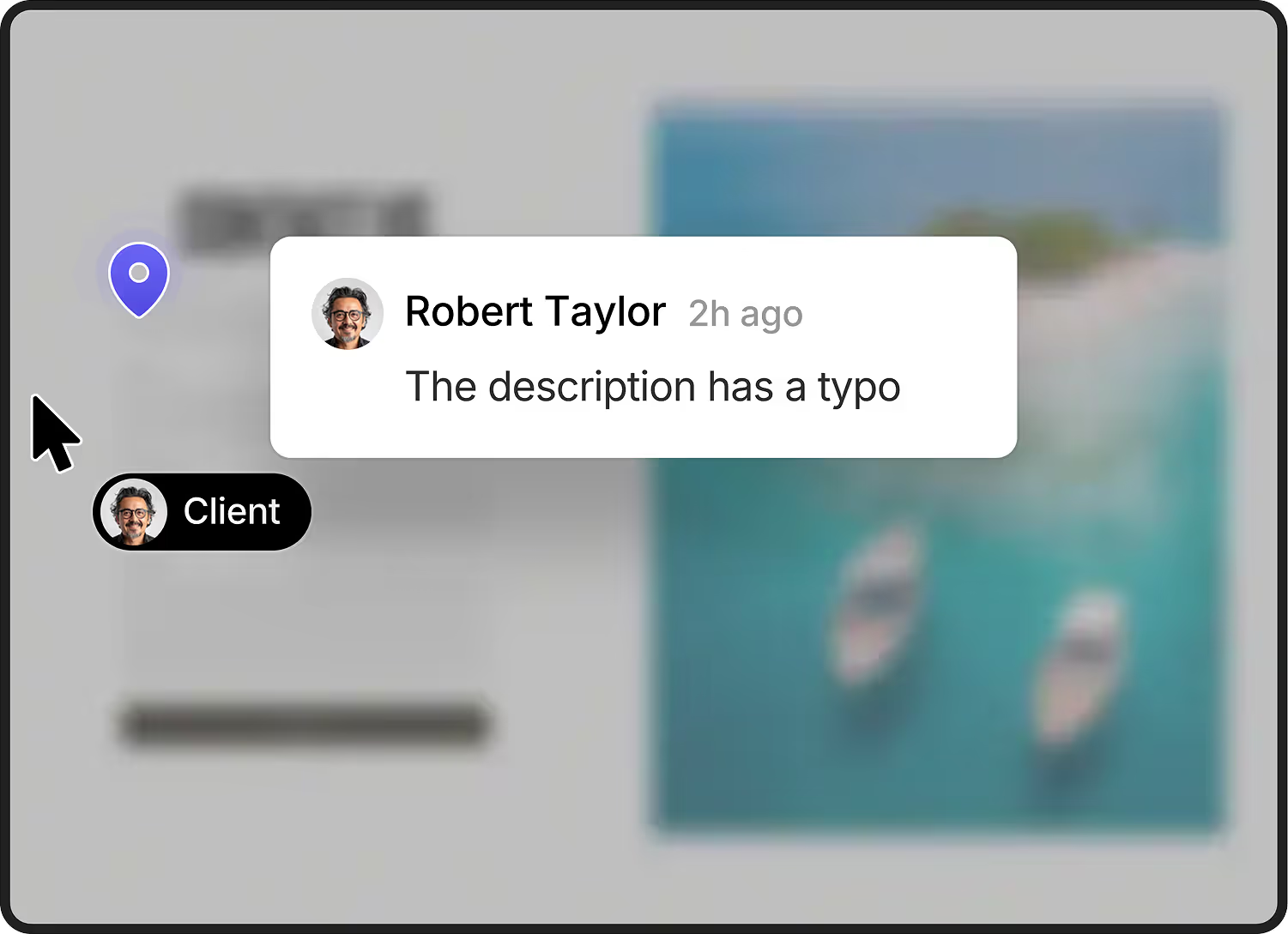
Clients leave feedback right on your staging site without needing an account or browser extension. Your team manages it inside Notion where they already work. Life's easier for all.
.svg)




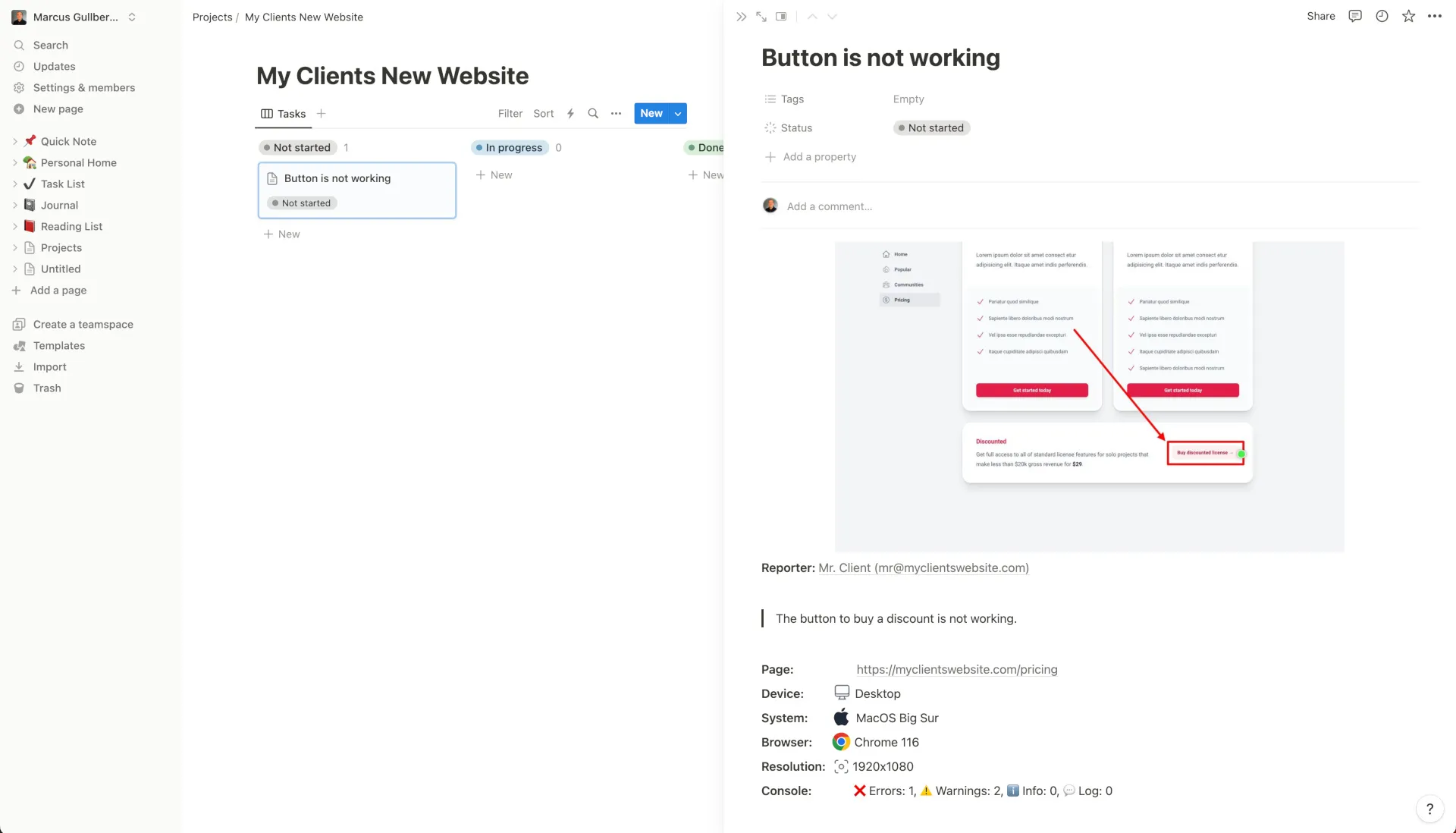
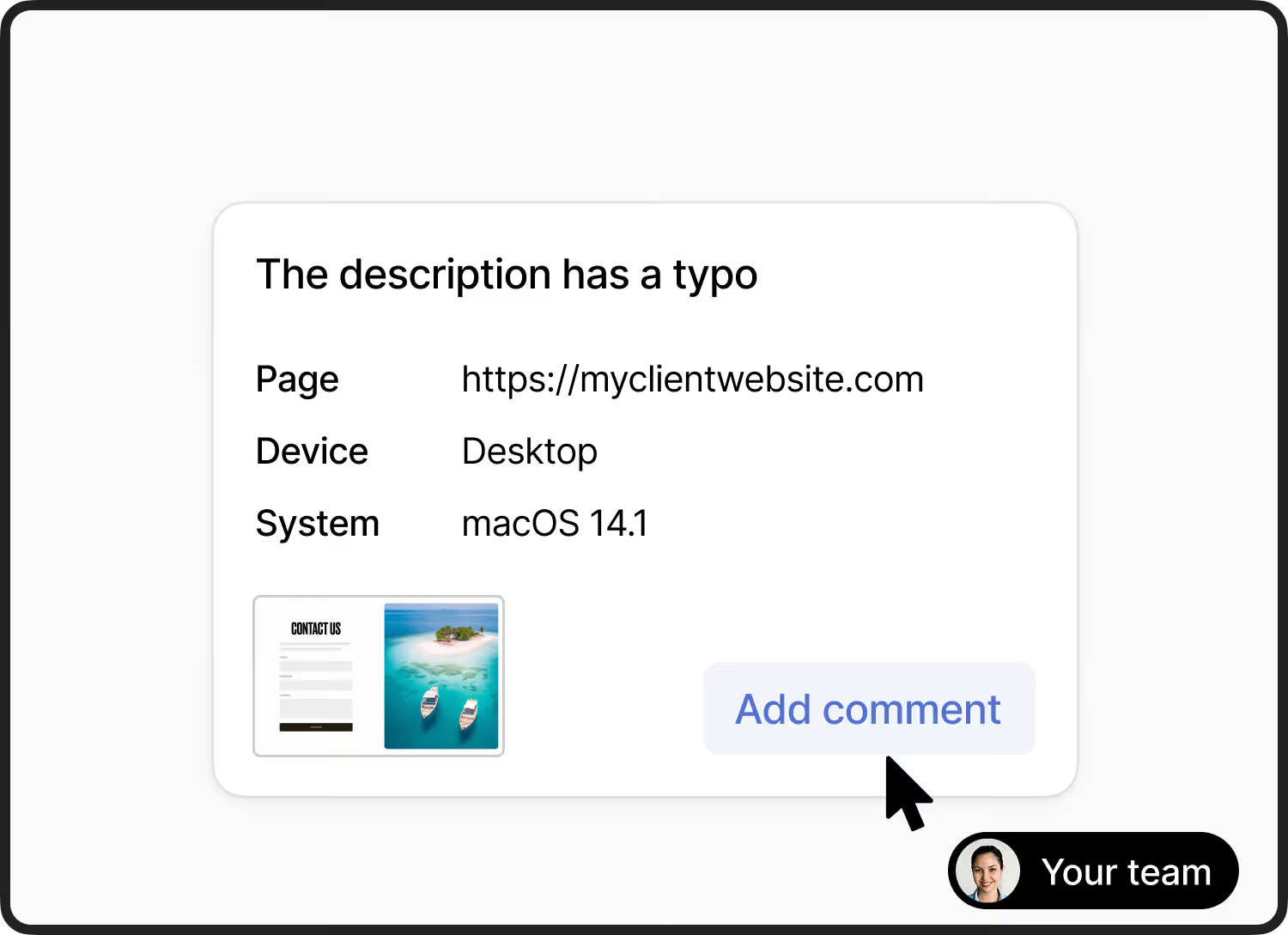
Feedback is automatically created as a page in Notion. It contains all the the information your developers need.
.svg)
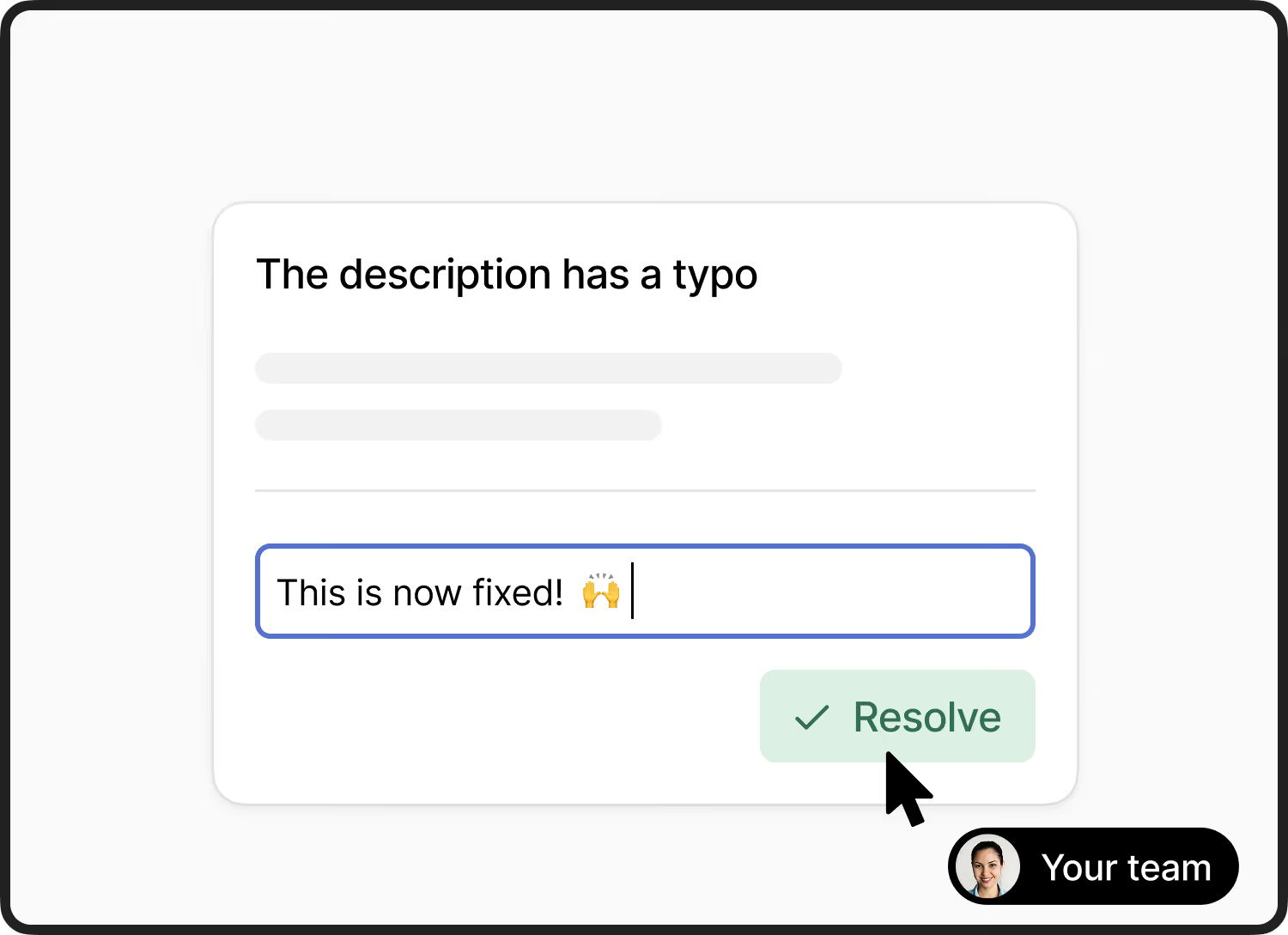
Your team can ask follow-up questions without leaving Notion. Deep two-way sync to manage feedback.
.svg)
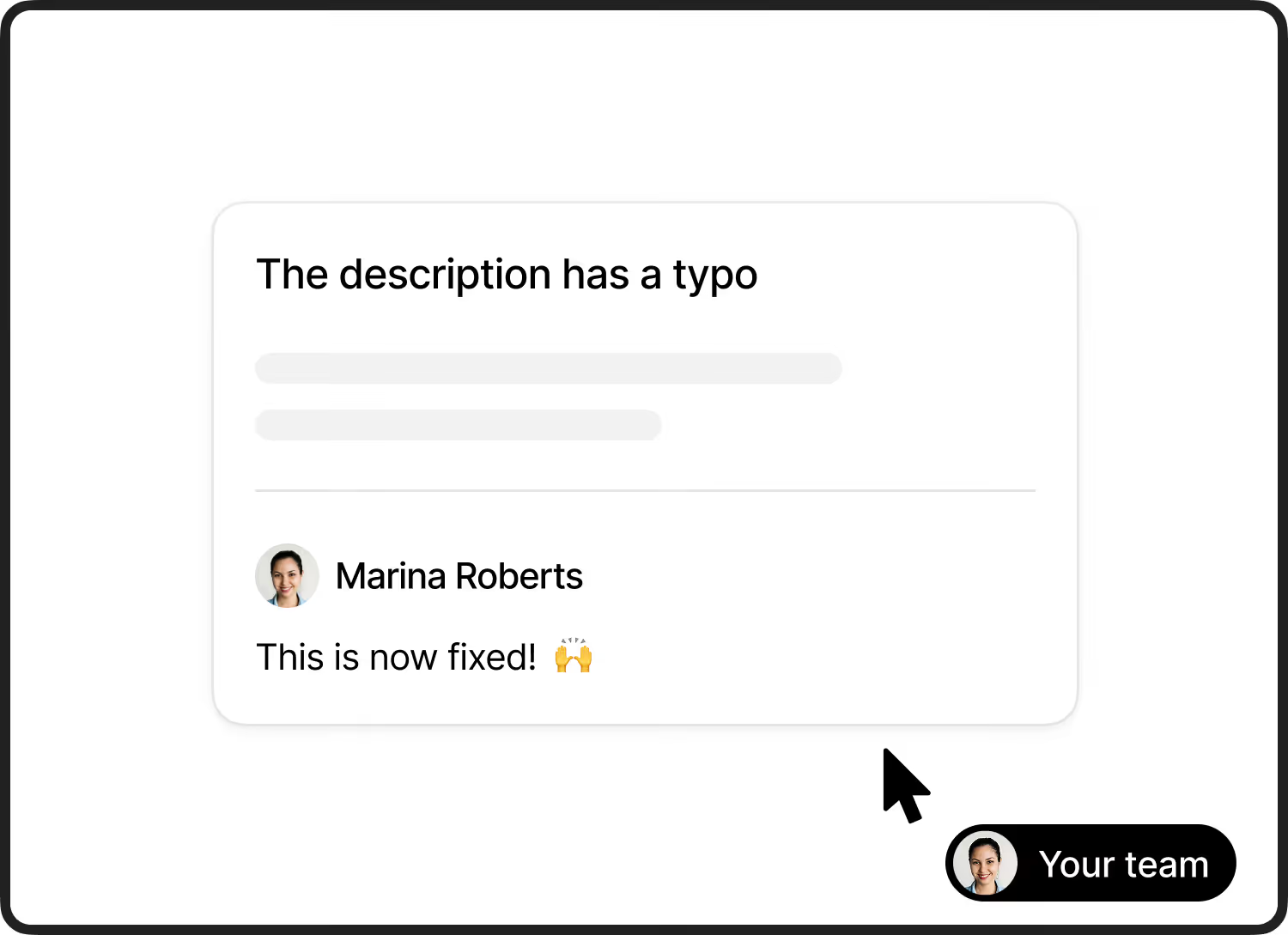
Resolve the feedback from Notion. Your team never has to leave your PM tool to manage the feedback.
No signups or downloads. Clients leave
feedback right on the staging site.
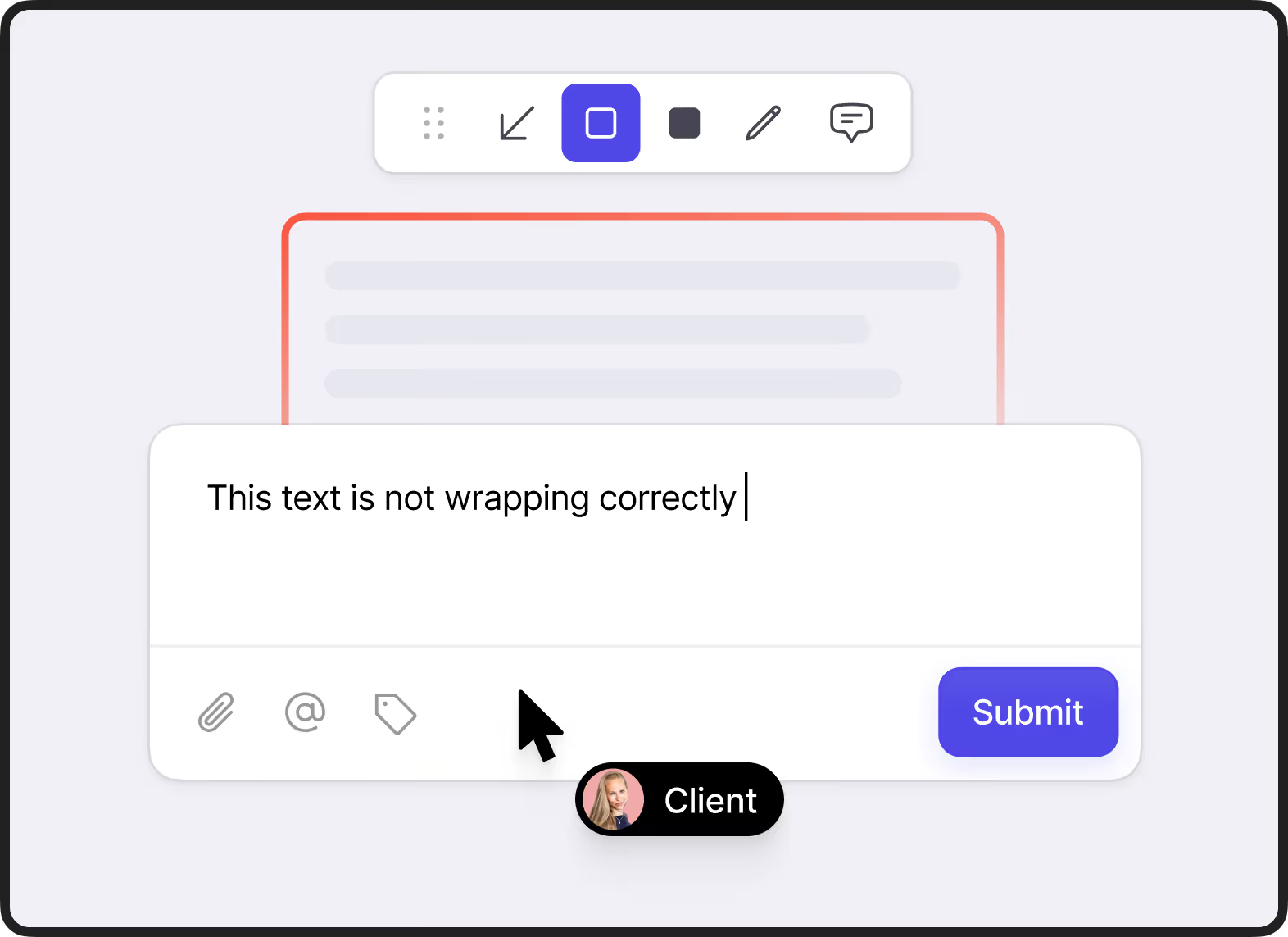
Clients click anywhere on the page to leave comments and annotations. Feedbucket takes automatically a screenshot of what they see.
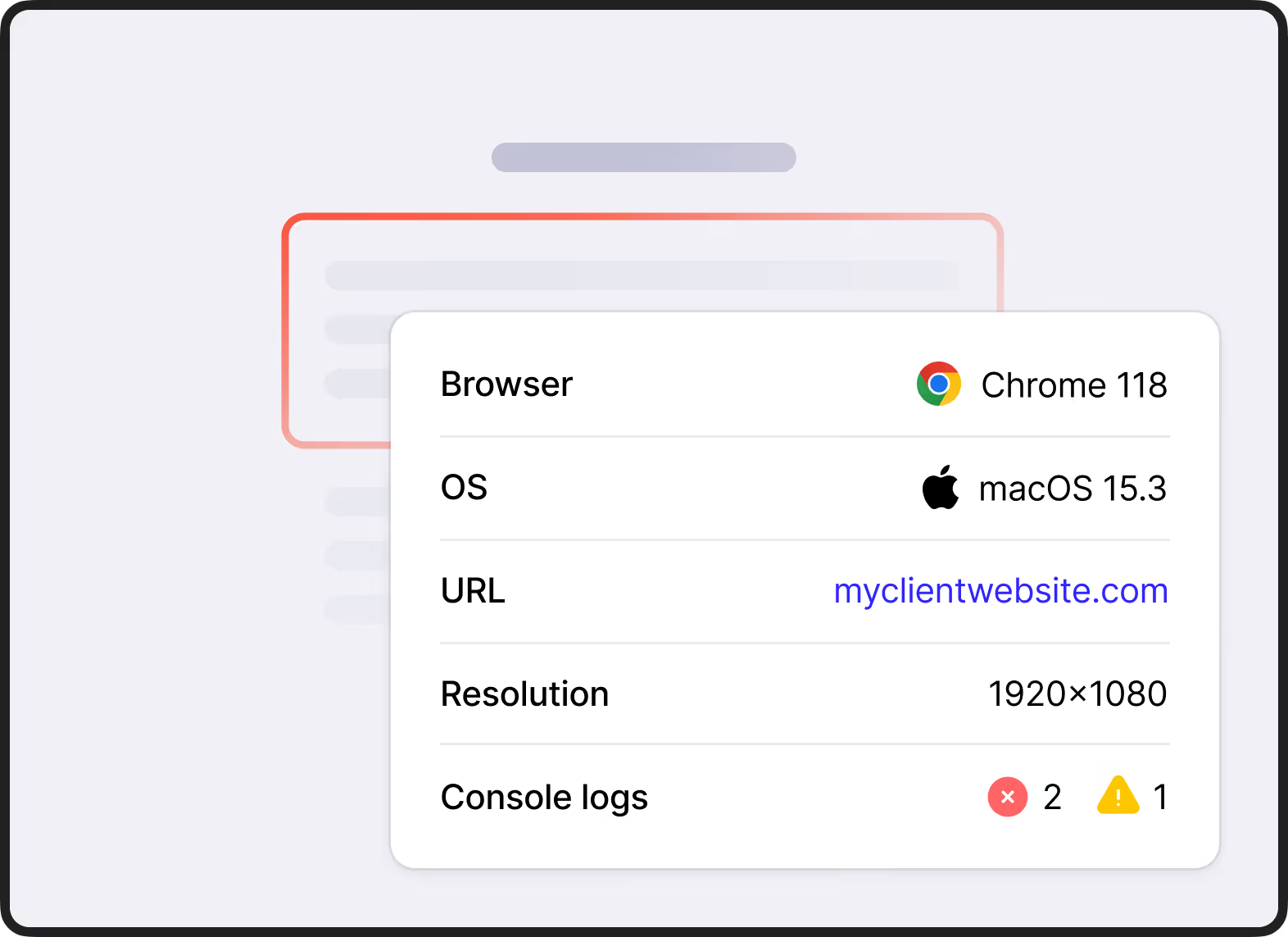
Feedbucket automatically captures the URL, browser, OS, resolution, console logs, and more when feedback is submitted. Everything your developers need.
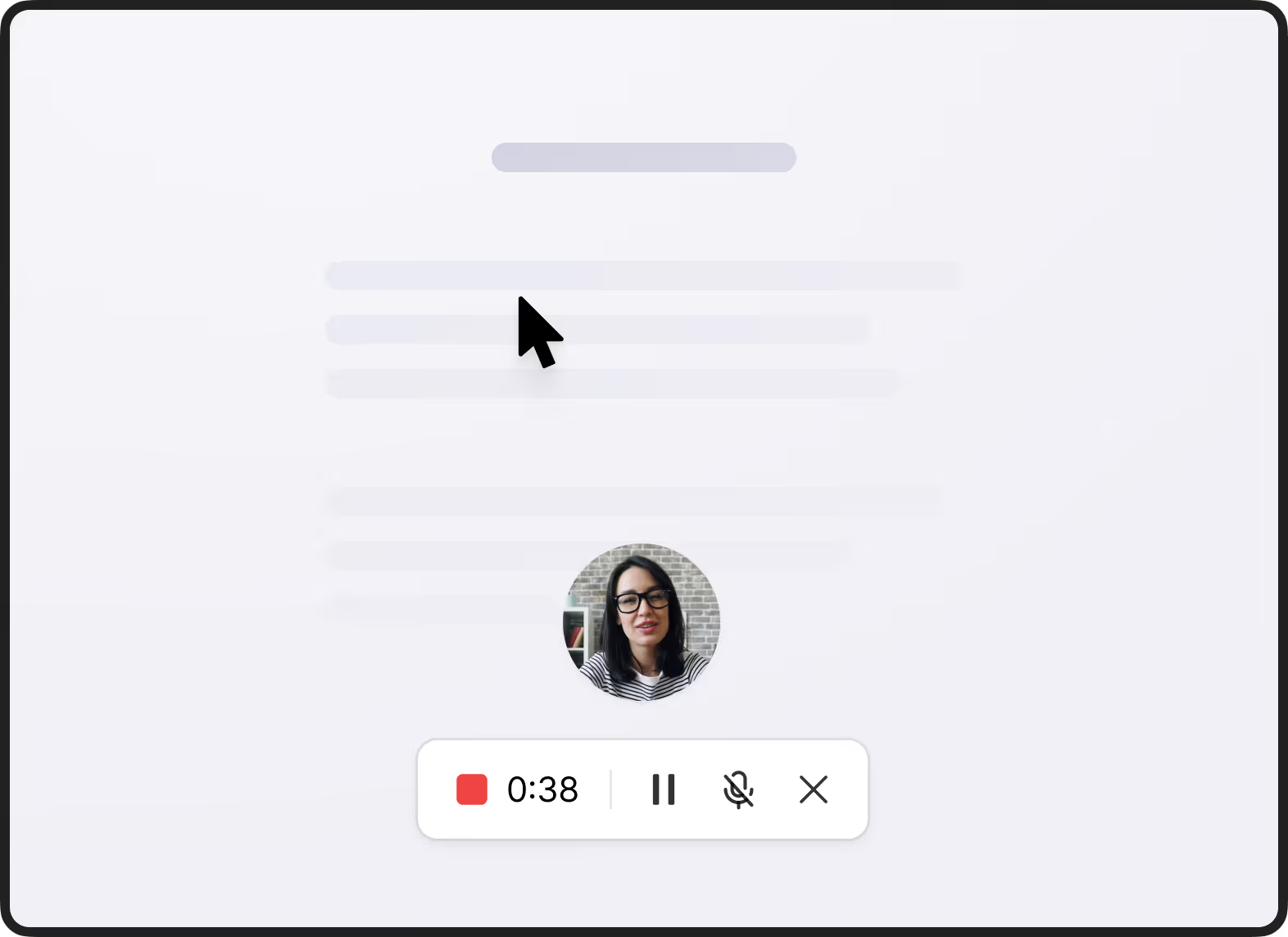
Some issues are tough to describe in words. Clients can record a video of the screen (with or without audio) directly in the browser. No downloads or software needed.
No additional platforms. Clients collaborate
on feedback right on the staging site.
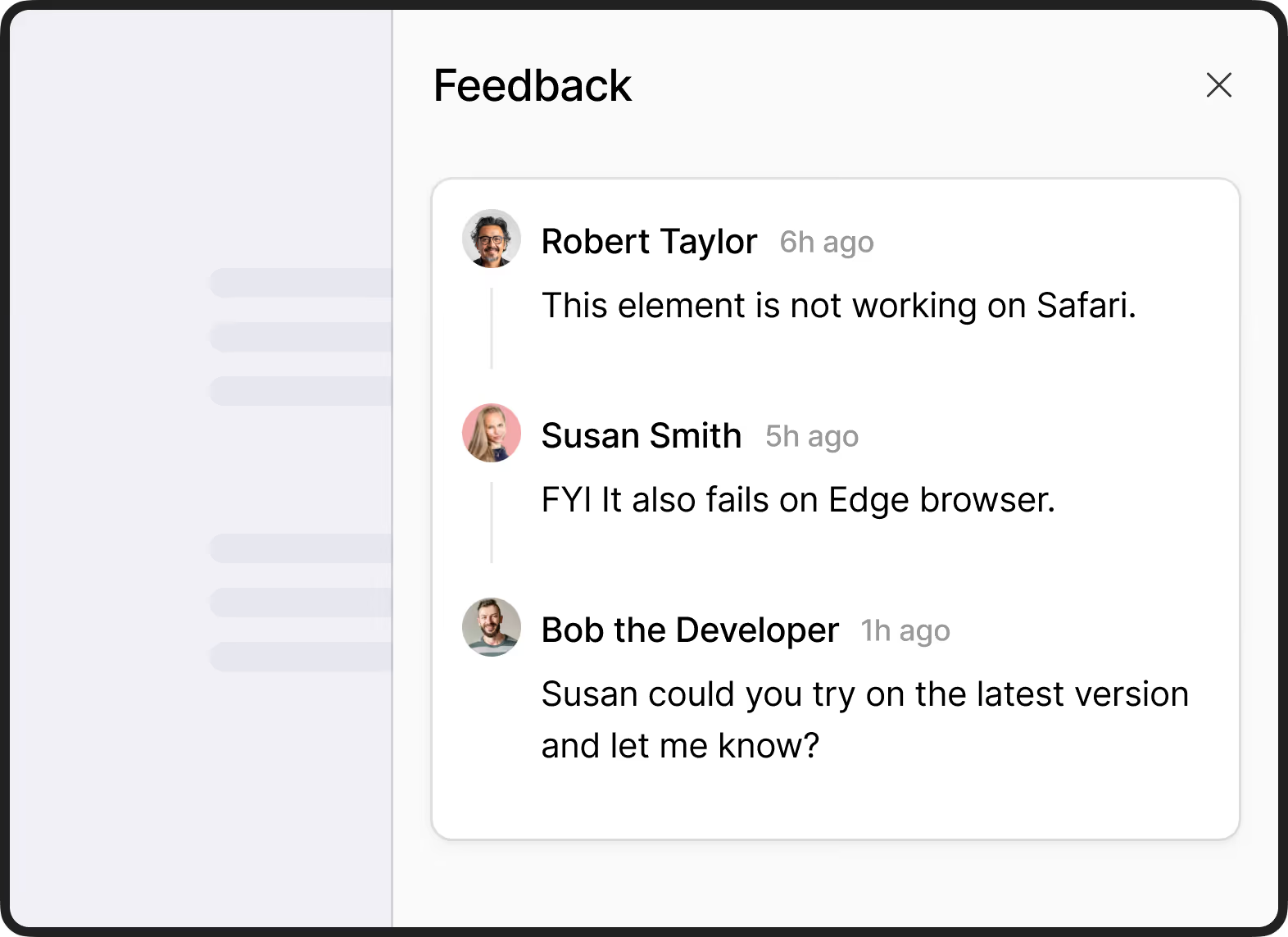
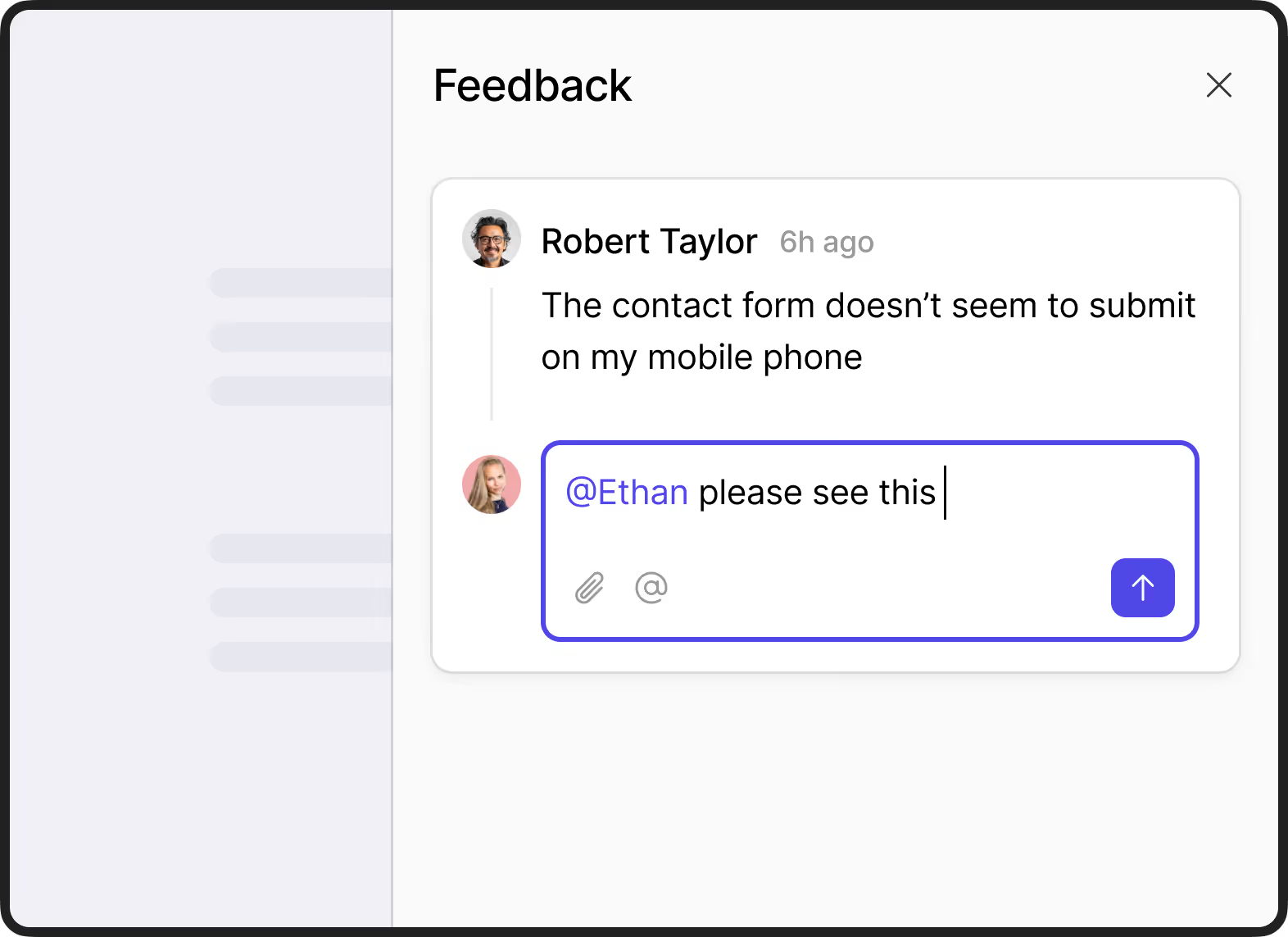
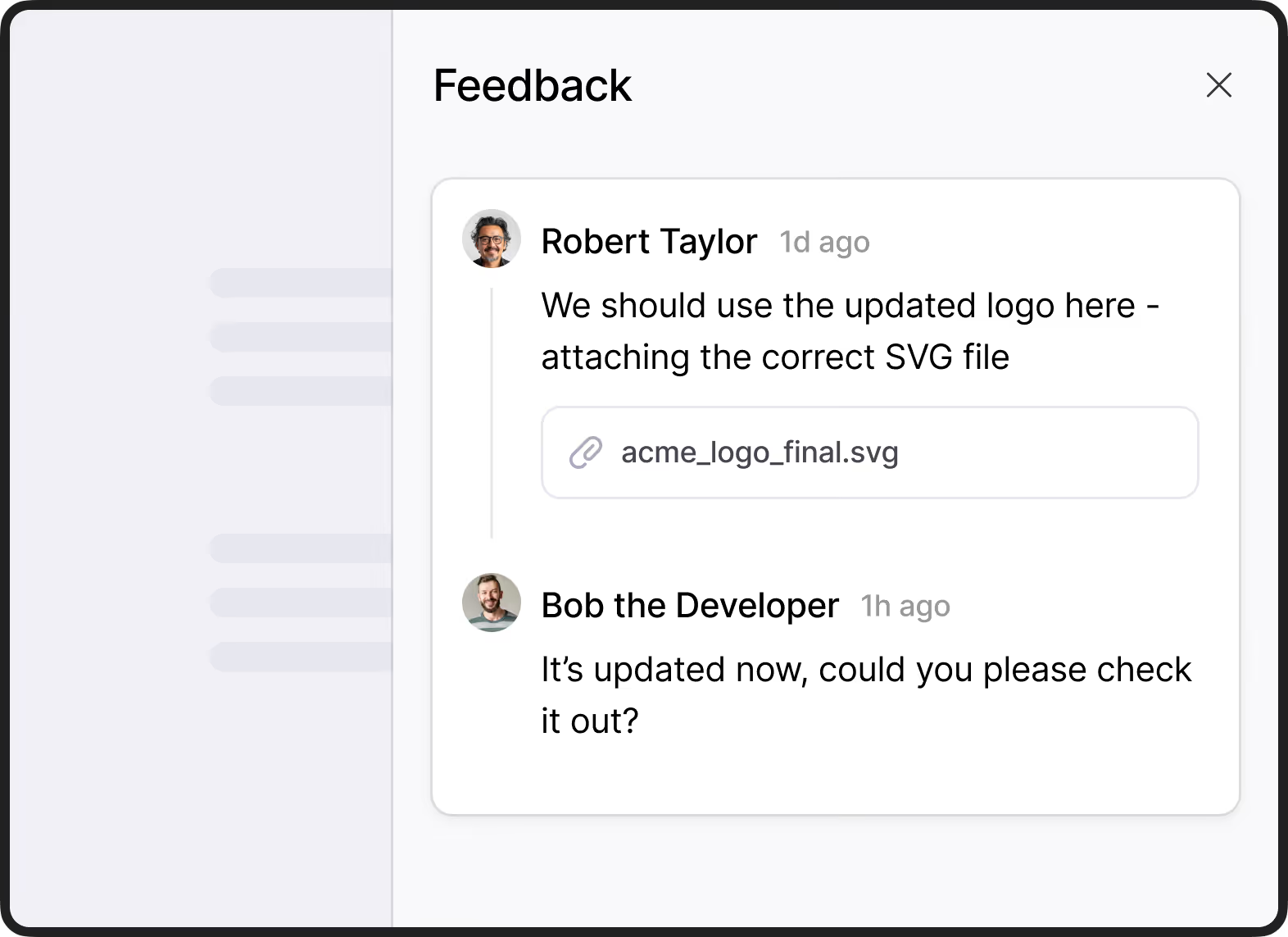
Clients, your team, and other stakeholders can comment and reply in one thread per feedback item. All comments sync automatically to the page in Notion.
Tag feedback to organize it and mention people to get their attention.
Clients can add attachments when submitting feedback or comments. Feedbucket uploads them straight to the page in Notion.

Everything your developers need. As a page in Notion.
Get all the information that's needed to start working on the issue directly in Notion. Technical information and screenshot are automatically added by Feedbucket to your Notion page.
Integrate in three easy steps
Register for Feedbucket free trial
Frequently asked questions
Feedbucket is a website feedback tool that you install on your clients staging or test environment. When Feedbucket is installed, the clients can submit feedback using screenshots or videos without leaving the website. Together with the screenshot/video comes technical information such as Browser and device straight into Notion.
To install Feedbucket on your website you just add a script tag to the head of the page. Or, alternatively, you can use our WordPress plugin for a no-code installation. To connect Notion is as easy as clicking on "Connect" and then choosing which database in Notion Feedbucket should submit tasks into.
Sign up for a 14-day free trial, create a project, and connect the Notion integration. The whole setup takes about 60 seconds.
Sure! Look at the Notion documentation for more information or reach out to us for support.
There is nothing for your clients to install. When you add Feedbucket to your website the client gets everything they need right in their browser.
Yes. Make sure that you decide who can see Feedbucket though. This can be done either with own logic, our WordPress plugin, or by a target query. Reach out to know more.
Feedback with no fuss.
Start your 14-day trial. No credit card needed.
